How to add a logo without breaking your QR code
A centre logo is possible because QR codes are built to survive damage — but only up to a point, and only if you cover the right part.
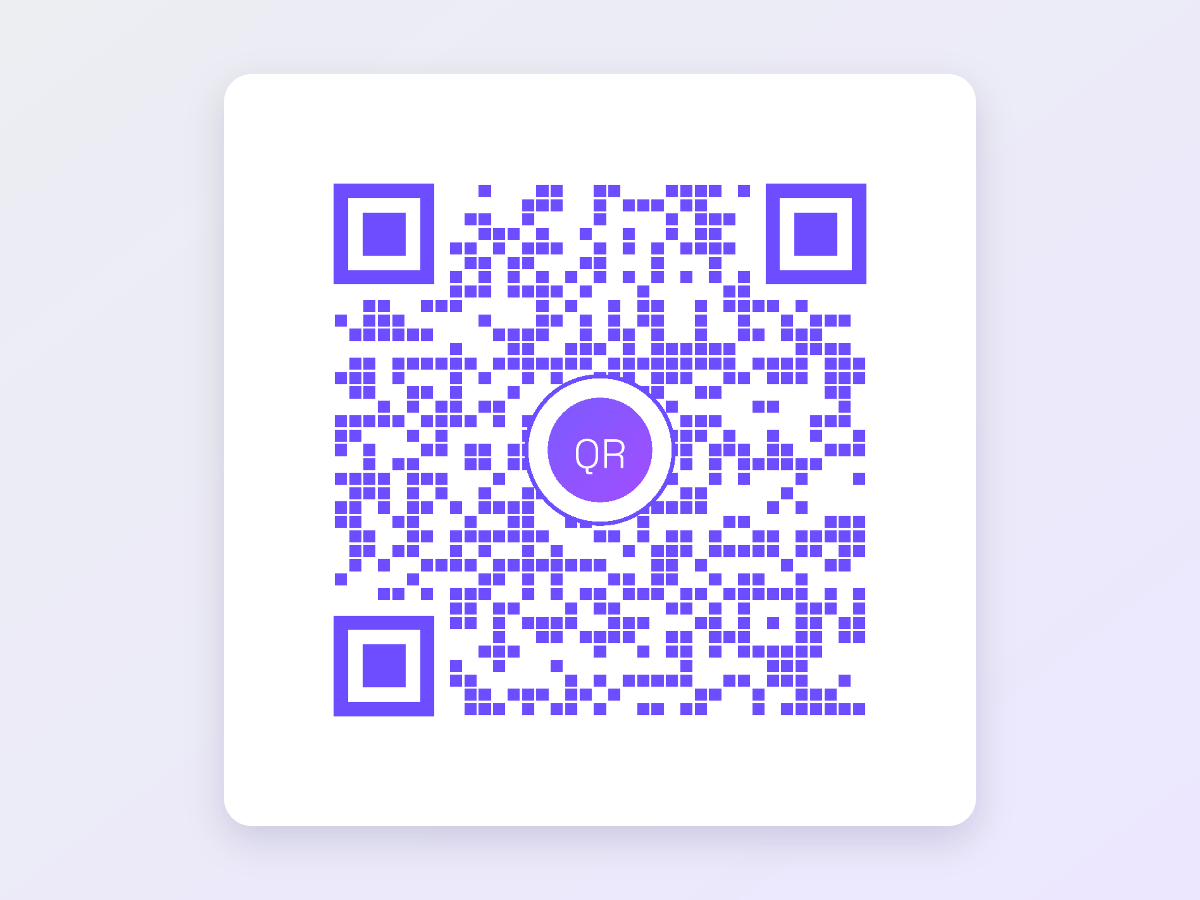
A centre logo is possible because QR codes are built to survive damage — but only up to a point, and only if you cover the right part.
A logo can sit on top of a QR code because every QR code carries redundant data. Reed-Solomon error correction adds extra codewords so a scanner can rebuild the message even when part of the pattern is missing, smudged or covered. The logo is simply deliberate damage.
There are four error correction levels, and each one recovers roughly a fixed share of the code: L about 7%, M about 15%, Q about 25% and H about 30%. Those percentages are the ceiling on how much of the pattern can be lost before the scan fails.
With a logo, set error correction to Q or H. M leaves too little headroom once you also account for print quality, glare and a phone camera holding still for half a second. Q is a sensible default for screens and clean print; H is the safer choice for anything laminated, folded, or printed small.
Do not read the recovery percentage as a budget you can spend down to zero. Real-world scanning eats into it, so treat the level as the reason a logo is possible, not as permission to cover a third of the code.
| Level | Recovers about | Use it when |
|---|---|---|
| L | 7% | No logo, clean digital display only |
| M | 15% | Plain codes in print, no overlay |
| Q | 25% | Logo on screen or good-quality print |
| H | 30% | Logo plus laminate, small size or rough surfaces |
Keep the logo under roughly 10% of the code's total area. Because area grows with the square of width, that is a square logo about 30% of the code's width — and 30% of the width is the practical ceiling, not the target. About 20 to 25% of the width, which is 4 to 6% of the area, is the comfortable working range.
Bigger is riskier for two reasons. The obvious one is that you are consuming the recovery budget. The less obvious one is that error correction is interleaved across data blocks: a large solid block of loss can wipe out more codewords in one block than that block can repair, even though the overall percentage still looks fine.
If in doubt, make the logo smaller. A logo nobody squints at still does its job; a code that fails to scan does not.
The centre is the only safe place for a logo. Loss there is spread evenly across the interleaved data blocks, so no single block takes the whole hit. Move the logo off-centre and you concentrate damage in fewer blocks while creeping towards structures that carry no redundancy at all.
Three things must never be touched. The three finder patterns — the large squares in the top-left, top-right and bottom-left corners — are how a scanner locates and orients the code. The timing patterns, the alternating rows and columns running between the finders, set the module grid. Cover any of them and the scan fails outright, whatever the error correction level says.
Place the logo on a solid plate in the code's background colour, with a couple of modules of padding around the mark. This gives the scanner a clean, unambiguous area to discard rather than a fringe of half-covered modules it may try and fail to read.
Transparent PNGs are the best logo source, but transparency is exactly why the plate matters: without one, the QR modules show through the gaps in your mark and produce ambiguous grey-ish edges. A transparent logo sitting on a solid plate gives you a crisp mark and a clean cut-out at the same time.
Raising error correction costs data capacity, so the encoder often has to step up to a larger QR version with more modules. The same URL can be a 33 by 33 grid at L and a 45 by 45 grid at H — more than twice as many modules squeezed into the same square.
That matters at print time. Each module gets physically smaller, so the whole code has to be printed larger to keep modules legible. As a rule, keep the code at least one tenth of the intended scanning distance: 2 cm across for a table tent read at 20 cm, 30 cm across for a poster read at 3 m. With a logo and H-level correction, size up from whatever your minimum was.
Test the actual exported file at the actual final size, not the preview on your screen. A code that scans on a 27-inch monitor can fail as a 2 cm sticker on matte card. Print one, then work through this list.
QR Code Agent bakes the logo into the exported PNG or SVG, so the file you download is the finished artwork — nothing else has to be composited on top.
These are static codes: the destination is encoded in the pattern itself, so the code never expires and needs no server. It also cannot be edited after download. If the link might change, point the code at a page you control and change the content on that page.
Ready to make one? The logo generator handles the upload, the frame and the error correction hint, and exports print-ready SVG.
Free, no sign-up, and your code never expires.
Got your code? ☕ Buy me a coffee — it keeps this tool free for everyone.